

Mediazone Workshops
Hands-on workshops in video, sound and social media for high school groups
Intro to Video Editing
- Target
- 18-year-old high school students
- Format
- 1.5 hr Theory + 2 hr Practical
- Focus
- Adobe Premiere Pro (desktop) with brief mobile mention
- Exercise
- Edit a short video using provided footage and music
1
Part 1: Theory Workshop
1.5 hoursIcebreaker & Inspiration
- Quick intro poll: “Have you ever edited video before?”
- Show a short 30–60 sec edited video (fun, creative, professional)
- Ask: What makes this video engaging?
What is Video Editing?
- Role of editing in storytelling and communication
- Different types of edits: linear, montage, narrative
- Real-world examples (YouTube, music videos, short films)
Editing Basics
- Core Concepts:
- Cut, trim, split, ripple delete
- Transitions and timing
- Syncing with music, pacing
- Brief Mobile Mention (5 mins):
- Quick look at CapCut or InShot
- Ideal for social media / quick edits
- Core Concepts:
Intro to Adobe Premiere Pro
- Overview of the interface:
- Project panel, timeline, preview monitor
- Tools: Razor, Selection, Move, Ripple Edit
- Demo:
- Importing footage and music
- Assembling clips on the timeline
- Adding basic transitions and titles
- Export settings (MP4, H.264, resolution basics)
- Overview of the interface:
Workflow Recap + Tips
- Typical workflow: Import > Edit > Review > Export
- Organizing assets in bins
- Shortcuts that help beginners
- Save often & keep backup copies
2
Part 2: Practical Session
2 hoursSetup
- Open Premiere
- Instructor ensures all students have:
- The provided video clip(s)
- Music track
- Title/logo graphic (optional)
Step-by-Step Guided Edit
- Students follow along:
- Import media
- Place video/audio on timeline
- Cut and arrange clips
- Add transitions and basic effects
- Add music and adjust levels
- Insert opening/closing title
- Students follow along:
Independent Editing Task
- Goal: Create a 30–60 sec video
- Use at least 3 cuts
- Add music and adjust audio levels
- Include one title screen
- Export in H.264 (MP4)
- Instructor walks around, offers tips and feedback
- Goal: Create a 30–60 sec video
Peer Review & Showcase
- Students share their edits (voluntary)
- Positive feedback round
- Highlight creative use of cuts, music sync, transitions
Wrap-Up
- Recap key editing concepts
- Share free learning resources (YouTube channels, Adobe tutorials)
- Q&A / feedback on session
- Optional challenge: Finish a short 1-min project at home
Intro to Video Editing & Music Creation Using AI Tools
- Audience
- 18-year-old high school students
- Total duration
- 3.5 hours (1.5 hr Theory + 2 hr Practical)
- Tools
- Adobe Premiere Pro, Soundraw, Topaz Video AI, Adobe Podcast, ChatGPT or similar AI engines
1
Part 1: Theory Workshop
1.5 hoursWelcome & Overview
- Quick intro to AI in creative media
- Session goals: Video + AI-enhanced audio + AI-created music
- Icebreaker: Guess which video used AI tools!
Fundamentals of Video Editing
- Timeline, trimming, transitions, sound sync
- Key Adobe Premiere Pro tools
- Role of visuals vs. audio in storytelling
Enhancing Video with Topaz AI
- What is Topaz Video AI?
- Use cases: Upscaling, frame interpolation, slow motion
- Before/after example demo
AI Music Creation with Soundraw
- How AI composes music
- Demo: Create music for a short clip
- Matching genre and emotion to visuals
Voice, Sound & Adobe Podcast AI
- Adobe Podcast Enhance: Fix poor voice recordings
- Voice cloning and narration (ethical talk)
- Sample demo: Clean audio vs. raw recording
Using AI Chat Engines in Media
- How ChatGPT helps: brainstorming, scriptwriting, shot lists
- Demo: Prompt ChatGPT to generate a video idea or scene description
- Students ask ChatGPT for video title ideas live
2
Part 2: Practical Hands-On Session
2 hoursTask Setup
- Each student (or small group) gets a short raw clip
- Goal: Create a short 30–60s edited piece with music and clean audio
Edit Video in Premiere Pro
- Trim, reorder, and enhance video
- Add transitions, color correction
- Use Topaz AI if possible (guided example)
Add Music from Soundraw
- Generate custom track to match mood
- Import into Premiere, sync to visuals
- Adjust levels, fade in/out
Enhance or Add Voice in Adobe Podcast
- Record or import voiceover
- Use Adobe Podcast to clean and enhance
- Sync narration with key visuals
Export & Share
- Export final edit
- Optional: Present or screen a few edits
- Quick feedback and celebration
Wrap-Up
- What AI tool did they enjoy the most?
- Career and creative possibilities using AI
- QR code to resource sheet or Google Drive folder
- Take-home tips or digital badge of participation
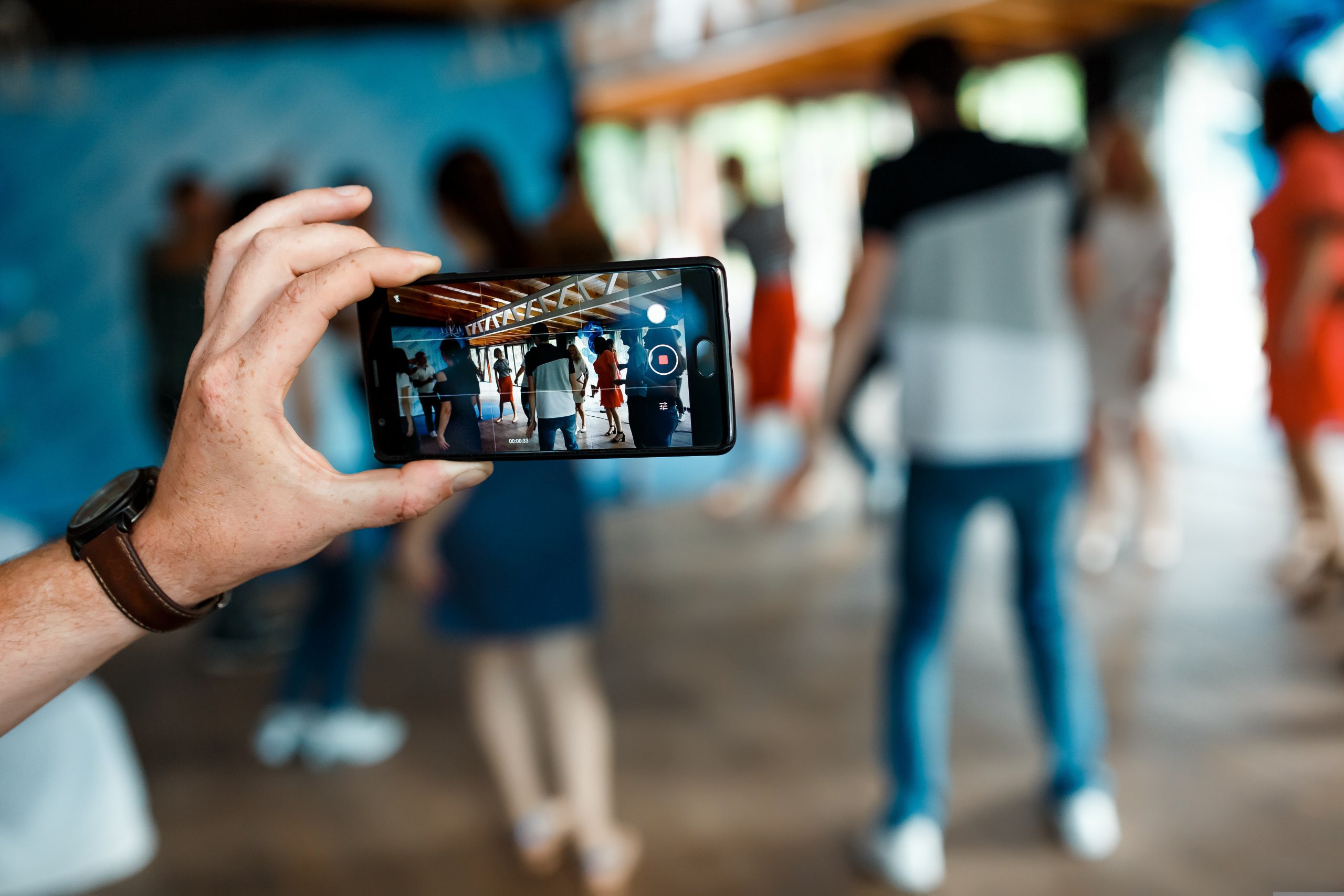
Mobile Phone Movie Making
- Total duration
- 3.5 hours (1.5 hr Theory + 2 hr Practical)
- Target group
- 18-year-old high school students
- Goal
- To introduce students to the fundamentals of mobile filmmaking and empower them to plan, shoot, and edit short films using their phones.
1
Part 1: Theory
1.5 hoursIntroduction to Mobile Filmmaking
- What is mobile filmmaking?
- Why mobile? Advantages and limitations
- Examples of successful mobile-made films (1–2 clips)
The Basics of Visual Storytelling
- The 3-act structure (Beginning, Middle, End)
- Storyboarding & shot planning
- Keeping it short and engaging (60–90 seconds)
Cinematography with a Phone
- Framing & composition
- Lighting tips (natural light, practical lights)
- Camera movements (handheld, tripod, stabilizers)
- Orientation: landscape vs portrait
Audio & Sound
- Importance of clear audio
- Using external mics or quiet environments
- Creative use of sound design/music
Editing on Mobile
- Recommended apps (CapCut, VN, iMovie, InShot, etc.)
- Basic cuts, trimming, adding music & titles
- Color correction basics
Tips for Better Production
- Shooting vertically vs. horizontally
- Keep it steady!
- Clean your lens
- Short and sweet: planning for 1–2 min films
2
Part 2: Practical
2 hoursGroup Activity Briefing
- Break into small groups (2–4 students)
- Choose a theme or prompt (e.g., “A secret”, “One minute mystery”, “Lost & found”)
Planning
- Brainstorm story
- Create quick shot list or storyboard
- Assign roles (camera, actor, director, editor)
Shooting
- Students film scenes using their mobile phones
- Encourage experimentation and multiple takes
Editing
- Edit directly on mobile apps
- Add music (royalty-free), basic effects, titles
Showcase & Feedback
- Each group presents their film (1–2 mins)
- Quick positive feedback from instructor & peers
Materials needed
- Students’ mobile phones (with camera and editing app installed)
- Headphones or small Bluetooth speakers (for sound checking)
- Optional: phone tripods, gimbals, external mics
- Printed mini storyboard templates (optional)
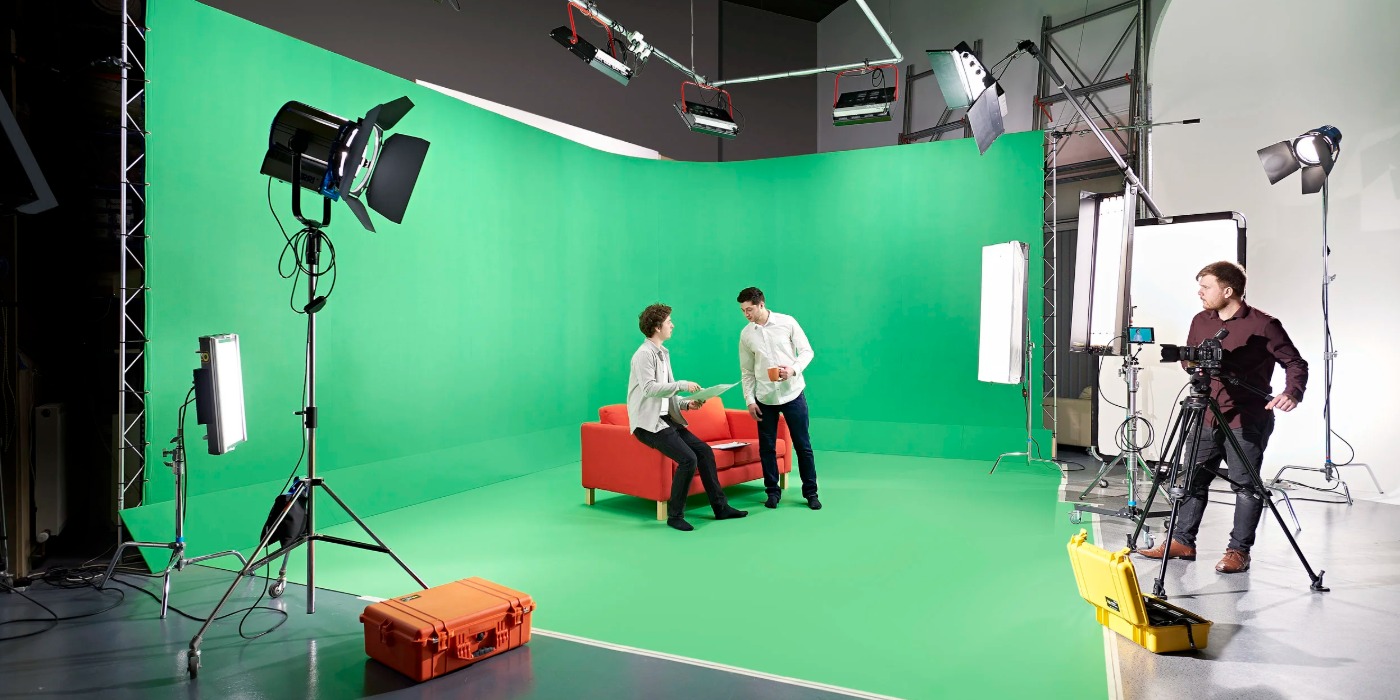
Green Screen Special Effects (Indoor/Outdoor)
- Duration
- 3 hours (including short breaks)
- Target audience
- Upper-year high school students (ages 16–18). No advanced prior experience required — basic camera and editing familiarity recommended.
By the end of this workshop, students will:
- Understand how green screen (chroma key) technology works.
- Learn how to light a green screen properly both indoors and outdoors.
- Shoot footage for green screen use.
- Key out the green screen in editing software.
- Combine foreground and background footage for visual storytelling.
1
Part 1: Theory
Presentation + demosThe Magic of Green Screen: How It Works
What is Green Screen (Chroma Key)?
- Definition & brief history (news, movies, YouTube)
- Why green? (and when to use blue)
Indoor vs Outdoor Use
- Lighting challenges & solutions
- Wind, wrinkles, and natural light interference
Key Equipment Overview
- Green screen (cloth, paper, pop-up)
- Lighting (3-point lighting for indoor; sunlight control for outdoor)
- Camera settings: resolution, depth of field, ISO
Visual Examples & Demos
- Good vs bad keying results
- Case study: VFX breakdowns (short YouTube examples)
- Live demo: Chromakey in Premiere Pro or CapCut
Engagement: Show 1–2 iconic scenes using green screen (e.g., Marvel or Star Wars) and ask students how they think they were created.
2
Part 2: Practical Shooting
Split into groupsLights, Camera… Green Screen!
Activity: Shoot short clips with green screen
- Form groups of 3–4 students
- Set up 2 stations:
- Indoor Green Screen Setup (controlled lighting)
- Outdoor Green Screen Setup (diffused sunlight or shade)
Each group will
- Write a 15–20 second scene (news report, fantasy scene, teleport, etc.)
- Assign roles: actor, director, camera, lighting
- Shoot 2 versions: one indoor, one outdoor
Instructor supervision
- Help with framing, avoiding shadows, stabilizing outdoor screens
- Give tips:
- “Don’t wear green!”
- “Mind the hair flyaways!”
3
Part 3: Post & Presentation
Editing + reviewMaking the Magic Real: Editing Green Screen
Activity: Edit your green screen footage
- Use accessible software (e.g., Adobe Premiere Pro, CapCut, or iMovie)
- Import clips and backgrounds
- Apply chroma key, adjust edges, color correct
- Add background video/images (sci-fi scene, newsroom, outer space, etc.)
Final step: Showcase & Feedback
- Each group presents 1 finished clip (1–2 mins max)
- Quick peer feedback: What worked well? What could be improved?
Materials needed
- 2 green screens (or 1 portable)
- 2–4 cameras or smartphones with tripods
- Lighting kits or reflectors
- Props or costume pieces (optional)
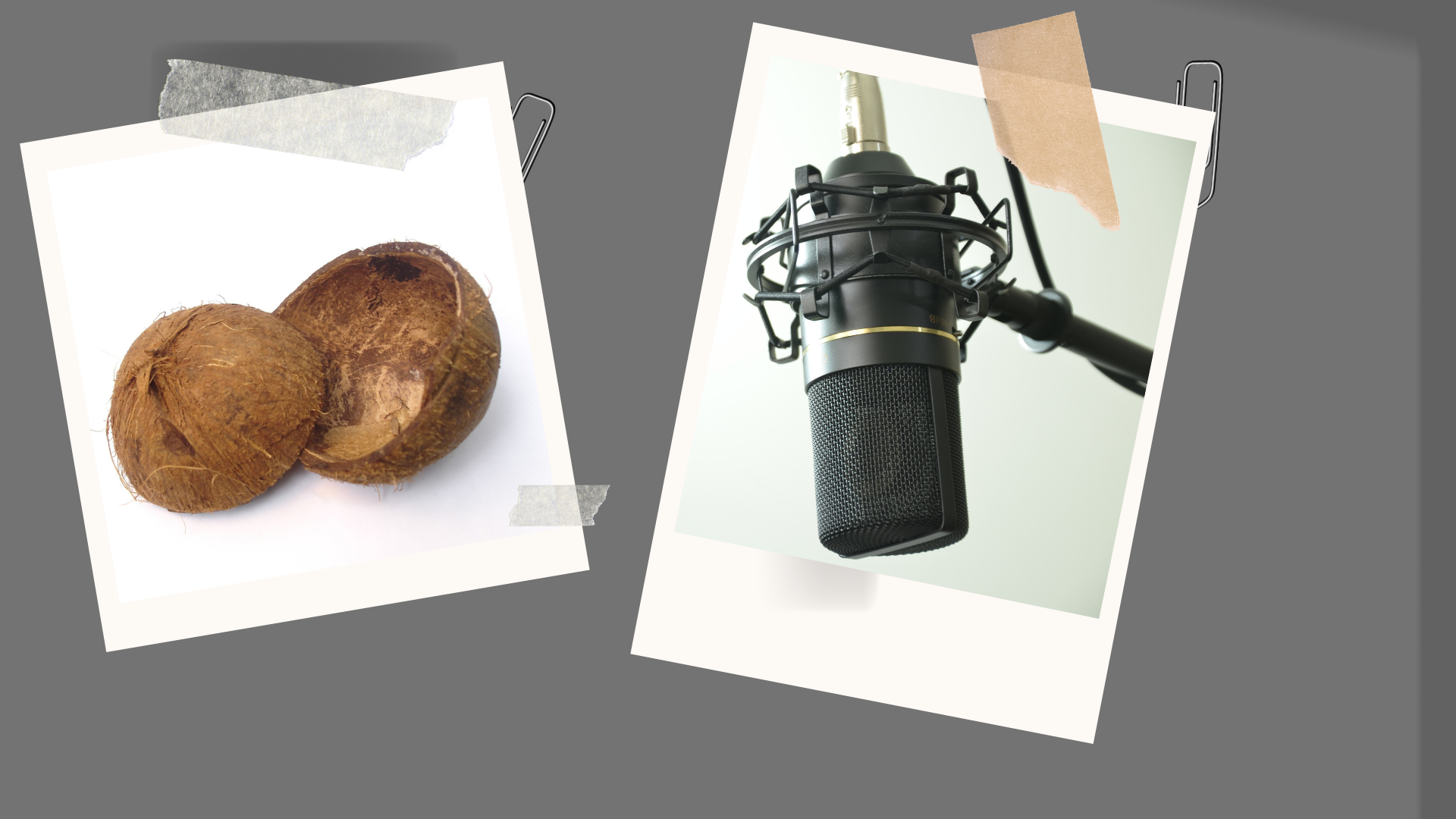
Foley Workshop
- Format
- 1.5 hr Theory + 2 hr Practical
1
Part 1: Theory
1.5 hoursIntroduction to Foley Sound
- What is Foley sound?
- Why Foley is important in film and video
- Why audio is more than just dialogue
The Origins of Foley Art
- Developed from early live radio sound effects in the 1920s
- Jack Foley helped pioneer the technique for film
- The goal was to improve realism and audience immersion
The Role of Foley in Storytelling
- Adds depth, realism, and emotional impact
- Helps scenes feel alive and believable
- Supports action, atmosphere, and character movement
The 3 Types of Foley Sound
- Feet: footsteps on different surfaces
- Movement: clothing rustle and body motion
- Specifics: doors, phones, glass, and other distinct effects
How Foley Sound Is Made
- Recorded on Foley stages with props and different surfaces
- Artists watch the picture and perform sounds in sync
- Microphone type and position affect the final result
Common Foley Techniques
- Everyday objects can recreate sounds such as snow, wings, whooshes, creaks, and punches
- Creative substitutions often sound more convincing than the real object
- Different surfaces and materials can change the sound dramatically
Sound Effects and Production Sound
- Sound effects may be created in the studio, taken from libraries, or recorded in the real world
- Foley can replace or enhance sounds not captured clearly on set
- The sound effects editor is responsible for sounds outside dialogue and Foley
2
Part 2: Practical
2 hoursListening and Identification
- Watch a short clip and identify the sounds that need Foley
- Discuss which sounds are missing, weak, or need enhancement
Planning the Foley Session
- List the required sound effects
- Choose simple props and surfaces to recreate each sound
- Assign roles for performer, recorder, and supervisor
Recording Practice
- Position the microphone or recorder about 1 foot from the sound source
- Point the microphone toward the source of the sound
- Record in a quiet space with little to no background noise
- Experiment with different objects to create surprising sound matches
Syncing and Performance
- Perform sounds live while watching the picture
- Match footsteps, movement, and effects to the action on screen
- Repeat takes until timing and texture feel natural
Review and Feedback
- Compare the recorded sounds for realism and clarity
- Refine timing, volume, and object choice
- Discuss which sounds worked best and why
Materials needed
- A mobile phone or recorder
- A quiet room or small Foley space
- Headphones or speakers for playback
- Simple props and household objects
- Optional: microphone, tripod, and sound library examples
Book a Workshop with Mediazone
Please note: This is an expression of interest only. A member of our team will contact you to coordinate the details.
The booking form is loading. If it doesn’t appear, email us at info.mediazone@unic.ac.cy
A Day in the Life: Social Media Manager, Copywriter & Content Creator
Part 1: Theory Workshop
1.5 hoursWelcome & Icebreaker
Role Breakdown
Skills & Tools Overview
The Content Calendar
Case Study & Q&A
Part 2: Practical Session
2 hoursTeam Briefing & Task Setup
Hands-On Creation
Team Presentations & Peer Feedback
Outcomes
By the end of the session, students will: